
Bulk edit product fields using a CSV file

Ankit Kothari
Last Update 4 hari yang lalu
With the Bolt app, you can bulk edit the product data into a CSV file by selecting the fields you want in just a few clicks. For this, you simply need to create the task.
How does it work?
Step 1) Go to Bolt Dashboard -> Bulk Edit ->Select the field that you want to update.
Step 2) Next is to select "All products in CSV".

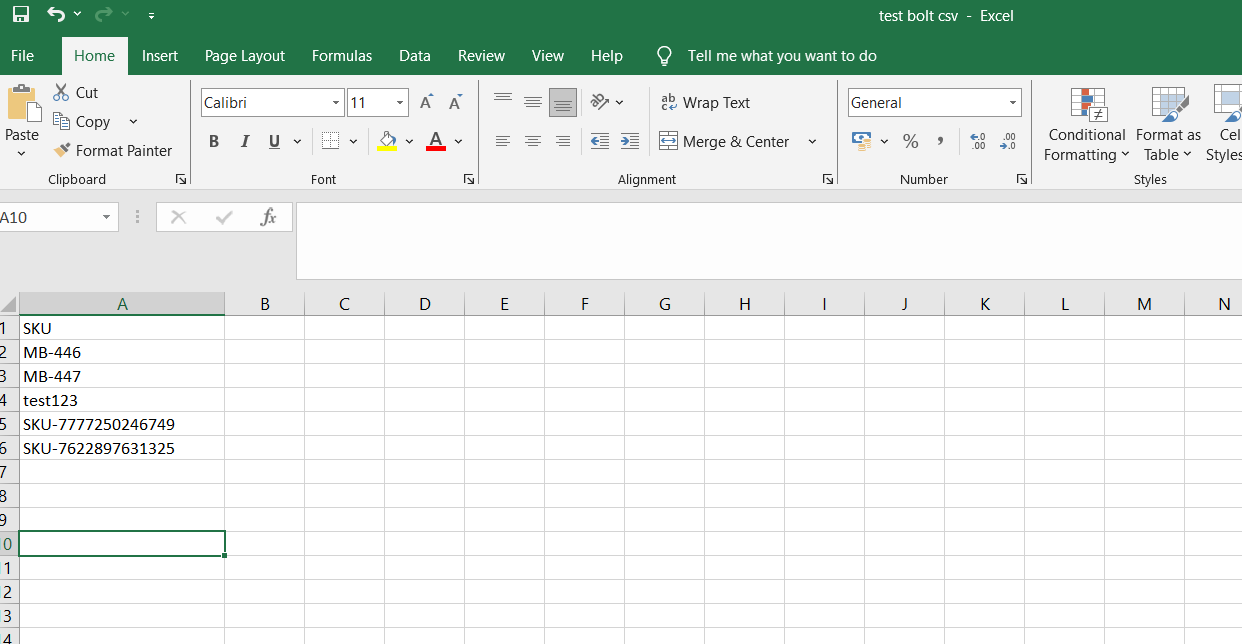
Step 3) Upload a CSV file with data with either of the columns (Variant ID, or Variant SKU, or Product Handle).
- Map the columns and submit the file.
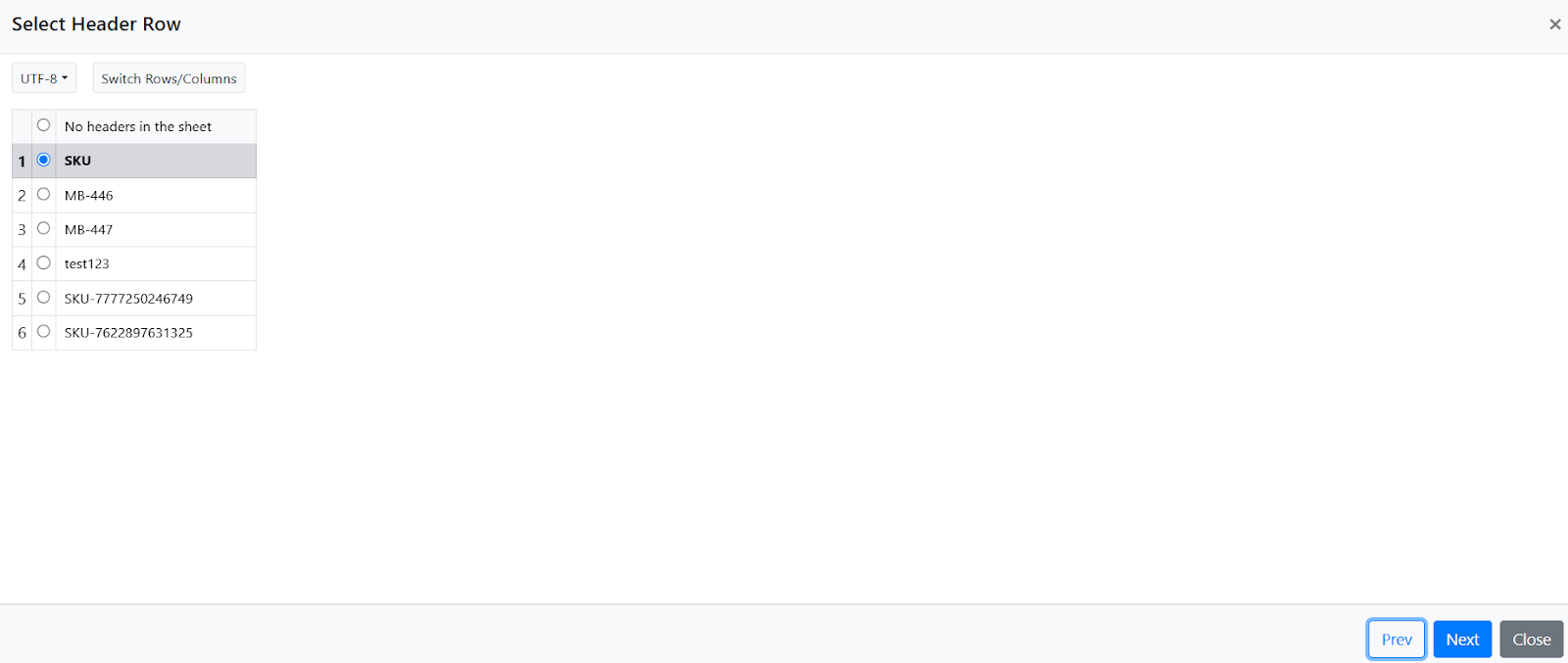
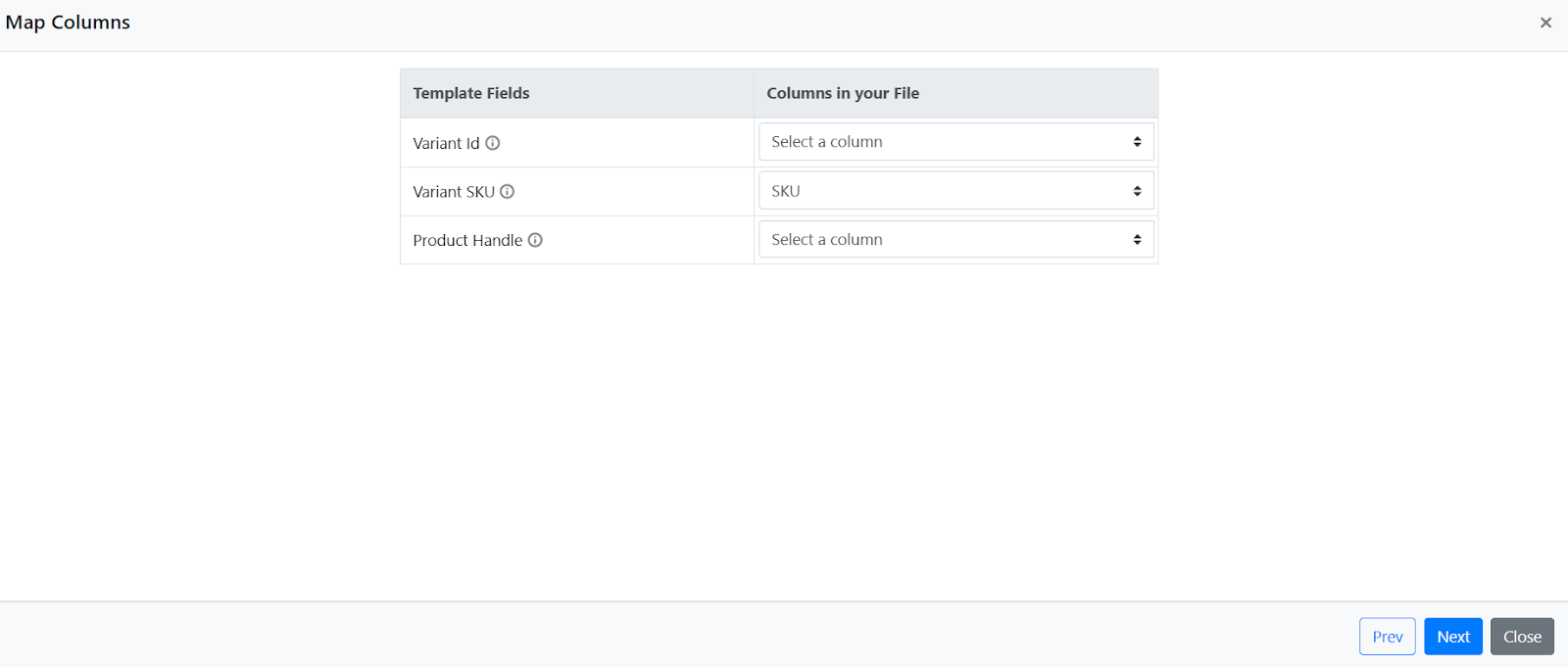
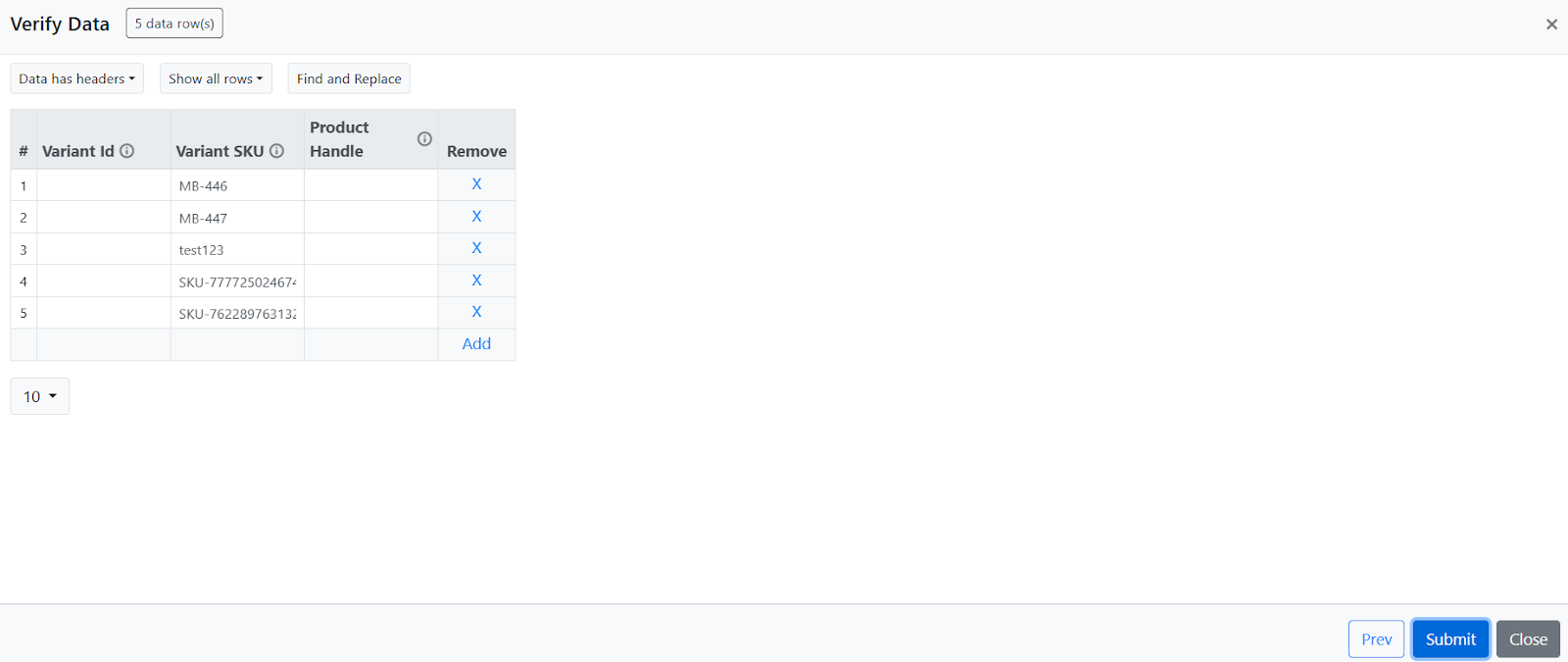
Step 4) Click Next. The app will read the products as per the CSV file and provide the count. Any SKU, handle, or variant ID not found in your store will be skipped.
Next, Configure the edit rules as per your requirement.

Step 6) You may preview the changes by selecting sample product and check

Step 7) You may perform the task instantly or schedule it for later
The app will execute the task as per the configuration. You can monitor the task activity in real-time and see the products that were edited in the history section of the app dashboard.
Refer to the below sample CSV:
Note:
Don't use special characters, symbols, or spaces, because these can cause problems when searching for products in Shopify by SKU and other computer programs, such as spreadsheet software. You can find the guidelines here.
Don't use special characters, symbols, or spaces, because these can cause problems when searching for products in Shopify by SKU and other computer programs, such as spreadsheet software. You can find the guidelines here.